1. Verify your Gmail as receiver
First Natasun will send you a verification link through content delivery network and DDoS mitigation company we are using for you, which we used to secure your domain and webmails.
note: Is recommended that you send the verification link to us, before you click on it, to prevent any mistakes.
2. Configure Gmail
Next we’ll do the Gmail configuration.
2.1 Create an app password
First you’ll need to create an email app password in your Google account. Go to https://myaccount.google.com/apppasswords and choose Email from the “Select app” dropdown and Other for the device.
Copy the password that’s generated for you.
2.2 Add the email address to Gmail’s “Send mail as” section
There are detailed instructions on adding a new email address, but it’s relatively easy. Go to your Gmail account settings and in the Send mail as: section, click the Add another email address option.
In the pop-up, enter your custom domain’s email address. Then click Next Step.
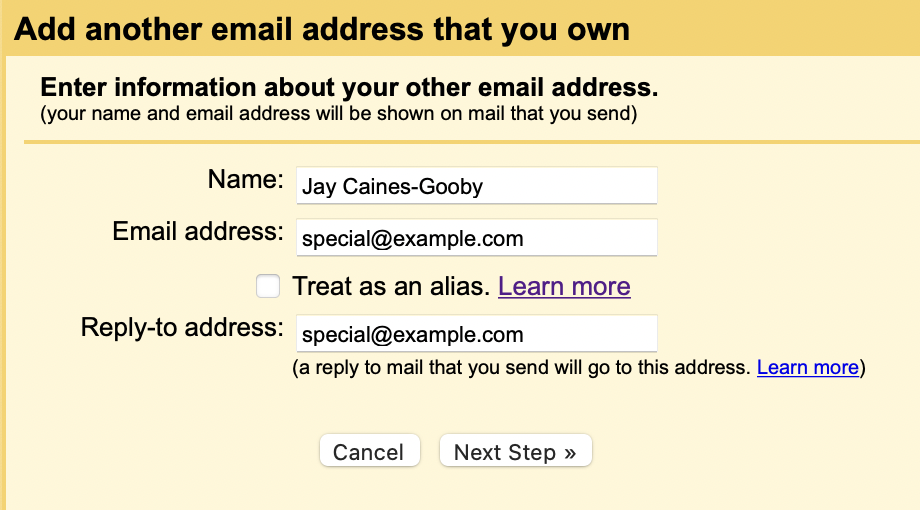
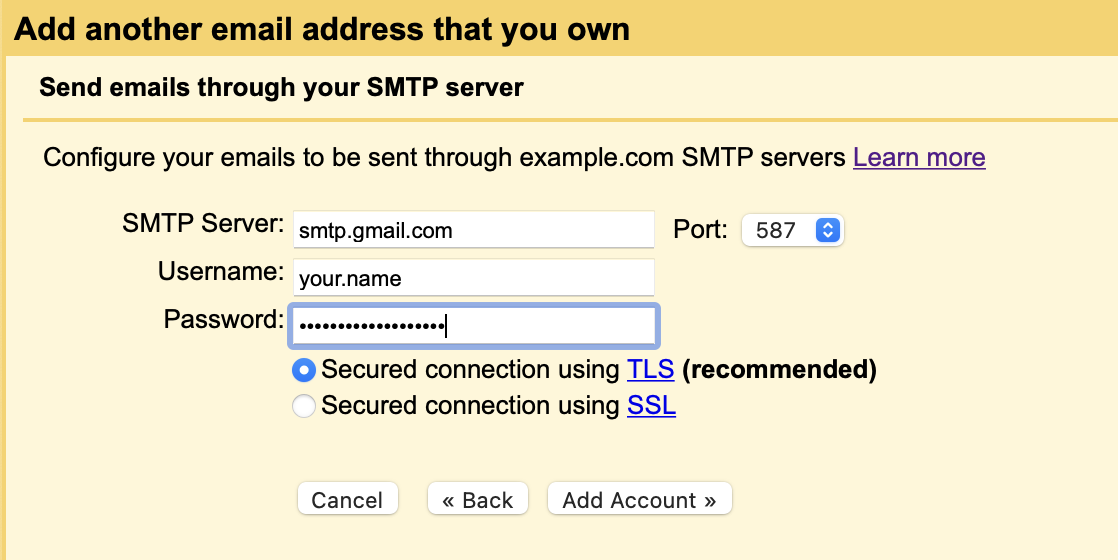
Overwrite the value for SMTP Server. Use smtp.gmail.com, leave the Port option as is.
Username should be the name part of your regular Gmail address, so if you’re your.name@gmail.com then you’d enter your.name@gmail.com. The Password is the email app password that you generated above. Click the Add Account button. You’ll be sent an email to the custom email address you entered. Click the link in this, and you’re good to go.
All done
You’ll be able to compose emails in Gmail and set the sender to your custom domain email address, and when people reply, Your domain will route these back to your regular gmail account, all without you needing a separate custom mail server.